.png)




vSphere Client v5.5
Please follow the instructions below to generate a report for each vCenter/vSphere server in your environment. Tabs with additional instructions are provided for any vCenters/vSphere server with different clients" in each product page.
Please perform the following steps once per vCenter
Please make sure you follow both License & VMs export instructions
1 - License Export
*Please remember to populate the details requested in the Environment Details Template*
a) Login to vCenter using vSphere Client
b) Go to Home > Administration Panel > Licensing
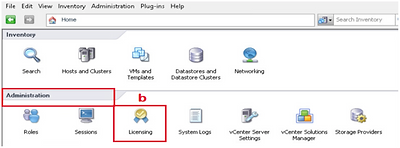
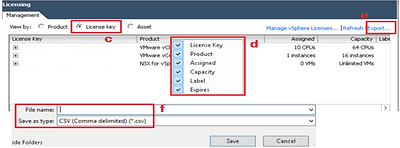
c) Select "License Key"
d) Right-click on the header bar and ensure that all fields are checked
e) Click "Export" and select "CSV"
f) Save License Exports of all vCenters in the same directory. Please give a unique name to each file
2 - VM Export
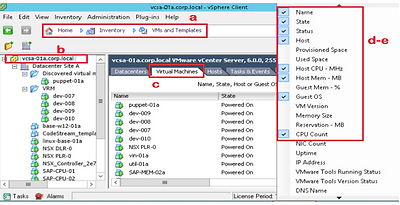
a) Go to Home > Inventory Panel > VM and Templates
b) Select the vCenter Root Hierarchy
c) Go to Virtual Machines
d) Right-click on the header bar and ensure that Name, State, Status, Host, Host CPU - MHz, Host Mem - MB, Guest OS, and CPU Count are checked
e) Scroll down to ensure the VM list has loaded completely. Wait until the list is fully populated before continuing.
f) Go to File > Export > Export List
g) Save as CSV. Save VM Exports of all vCenters in the same directory as the License Exports
Please give a unique name to each file